
Seeing LaView camera error code 8200 when trying to access your camera can be frustrating, especially when the live video feed does not load or the camera appears offline.
In many cases, the problem is related to the camera’s network connection, WiFi settings, app setup or communication between the camera and the LaView app. This guide explains what to check and how to troubleshoot the problem step by step.
If you see LaView error code 8200, first check your WiFi connection, make sure your phone and camera are using the correct network and restart the router and camera.
For many LaView WiFi cameras, 2.4 GHz WiFi is required. If the problem continues, reset the camera and add it again through the LaView camera app.
What Is LaView Camera Error Code 8200?
LaView does not currently publish a universal public definition for error code 8200 across all camera models. The exact behavior can therefore vary depending on the camera, app version and network setup. If the code appears while opening the camera, common symptoms may include:
- Camera showing offline
- Live video feed not loading
- Camera connection error
- Camera not connecting during setup
- App failing to communicate with the camera
- Camera appearing in the app but not responding
Because LaView camera models use different hardware and setup methods, the best approach is to troubleshoot the network connection, camera status, app and WiFi configuration first.
Why Does LaView Error Code 8200 Occur?
A LaView camera 8200 error can appear when the camera cannot communicate properly with the app or network. Some common causes include:
1. Camera Is Connected to the Wrong WiFi Band
Many current LaView WiFi cameras support 2.4 GHz WiFi rather than 5 GHz. LaView’s support pages for several models specifically instruct users to connect their phone to a 2.4 GHz network before camera setup.
If your router combines 2.4 GHz and 5 GHz under one network name, setup can sometimes become confusing.
2. Weak WiFi Signal
A camera installed too far from the router may connect inconsistently or go offline. LaView recommends moving the camera closer to the router when troubleshooting connection problems.
For one current LaView camera support page, the company recommends checking signal strength and keeping the device within good WiFi coverage.
3. Incorrect WiFi Password
If the WiFi password is incorrect, the camera cannot complete its connection to the network.
This is particularly common after changing your router password or installing a new router.
4. Router or Internet Connection Problem
The camera may be working correctly while the router is temporarily overloaded or experiencing a network problem.
LaView recommends checking whether other devices can access the internet and restarting the router when a camera remains offline.
5. Camera Needs to Be Added Again
If your WiFi name or password has changed, the camera may remain offline because it still has the old network information.
LaView recommends resetting and reconnecting the camera when WiFi details change on supported models.
LaView Error Code 8200: Quick Troubleshooting Checklist
| Problem | What to Check | Quick Fix |
| Camera won’t connect | WiFi network | Connect to the supported 2.4 GHz network |
| Incorrect password | WiFi credentials | Re-enter the password carefully |
| Weak connection | Camera distance | Move the camera closer to the router |
| Camera offline | Router/internet | Restart the router and camera |
| App can’t detect camera | App permissions/status | Restart the app and check permissions |
| WiFi changed | Old network details | Reset and add the camera again |
| Error continues | Camera configuration | Perform a model-specific reset |
How to Fix LaView Camera Error Code 8200
Try these solutions in order. Start with the basic network checks before resetting the camera.
1. Check Your WiFi Connection
First, make sure your home WiFi is working properly. Use your phone or another device to connect to the same network and open a website or app. If other devices also have trouble connecting:
- Unplug your router.
- Wait about 60 seconds.
- Plug it back in.
- Wait for the WiFi to become available.
- Try opening the LaView camera again.
LaView recommends restarting the router when a camera remains offline because temporary router or network congestion can affect camera connectivity.
2. Connect Your Phone to a 2.4 GHz Network
This is one of the most important steps for LaView error code 8200 troubleshooting. For several LaView WiFi camera models, the company states that the phone should be connected to a 2.4 GHz WiFi network during setup.
If your router has separate networks, you may see names such as:
- HomeWiFi-2.4G
- HomeWiFi-5G
Connect your phone to the 2.4 GHz network before adding the camera. If both bands use the same SSID, ch eck your router settings or temporarily separate the networks if your camera’s instructions require it.
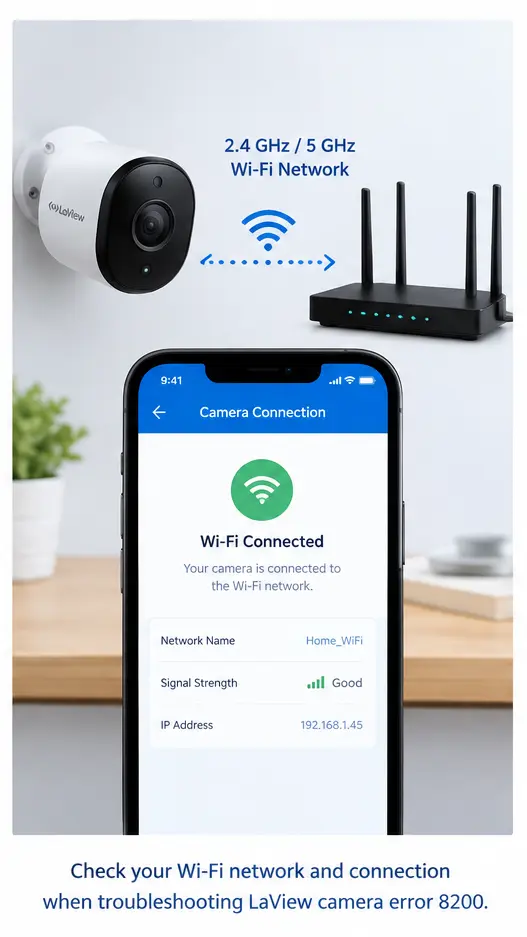
LaView camera 2.4 GHz WiFi connection troubleshooting
3. Move the Camera Closer to the Router
A weak WiFi connection can cause your LaView camera to disconnect or fail during setup. For testing, move the camera close to the router.
Then:
- Keep the camera powered on.
- Connect your phone to the correct WiFi network.
- Open the LaView app.
- Check the camera status.
- Try opening the live video feed again.
If the camera works normally when it is close to the router, the problem may be WiFi coverage rather than the camera itself. LaView recommends moving cameras closer to the router when troubleshooting weak or intermittent WiFi connections.
4. Check the WiFi Password
An incorrect WiFi password can prevent the camera from joining your network.
When adding the camera again:
- Enter the password carefully.
- Check uppercase and lowercase characters.
- Make sure you selected the correct WiFi network.
- Avoid accidentally adding spaces.
- Confirm the password works on another device.
LaView’s setup instructions specifically tell users to enter the password for their 2.4 GHz network during camera setup.
5. Restart the LaView Camera
A temporary camera connection problem may disappear after a restart. Disconnect the camera from power, wait several seconds and reconnect it.
Give the camera enough time to start completely before opening the LaView camera app. If the camera still shows LaView camera error 8200, continue with the next step.
6. Check the Camera in the LaView App
Open the LaView camera app and check the camera status.
Look for:
- Online or offline status
- Live video feed
- WiFi information
- Device settings
- Connection or network notifications
- If the camera appears offline, refresh the app and try again.
If you recently changed your WiFi name or password, you may need to add the camera again. LaView’s current instructions for changed WiFi information use the app’s + Add Device process after resetting the camera.
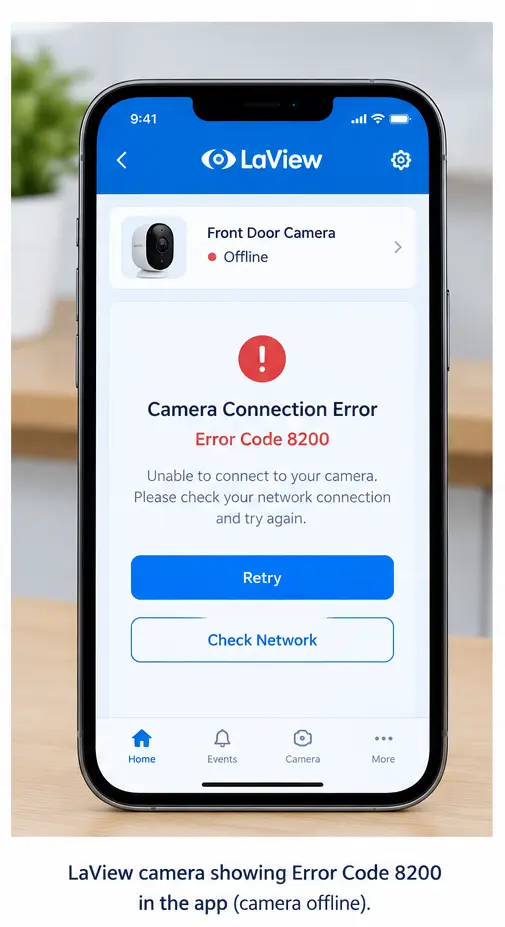
LaView camera showing a connection error and offline status in the app.
7. Reconnect the LaView Camera to WiFi
If the camera was previously connected but is now offline, reconnect it to your current WiFi network.
For supported LaView cameras:
- Connect your phone to the 2.4 GHz WiFi network.
- Open the LaView app.
- Tap the + icon.
- Select Add Device.
- Choose the appropriate camera type.
- Follow the setup instructions.
- Enter the WiFi password.
- Complete the pairing process.
Some LaView cameras use a QR-code pairing process. During setup, the app creates a QR code containing the WiFi information, which the camera scans. LaView’s B9 setup instructions recommend keeping the phone and camera close and positioning the QR code approximately 6–8 inches from the camera.
8. Reset the LaView Camera
If the camera still shows LaView error 8200, resetting it can clear its existing network configuration.
The exact reset process varies by model, but LaView’s support pages for several cameras instruct users to hold the reset button for about 5 seconds until the camera provides the expected beep or indicator response.
After resetting:
- Keep the camera close to your router.
- Connect your phone to 2.4 GHz WiFi.
- Open the LaView app.
- Tap + Add Device.
- Select your camera.
- Enter your WiFi password.
- Complete the QR-code or pairing process.
- Wait for the camera to come online.
Important: Resetting can remove the camera’s current network configuration, so you may need to complete the setup again.
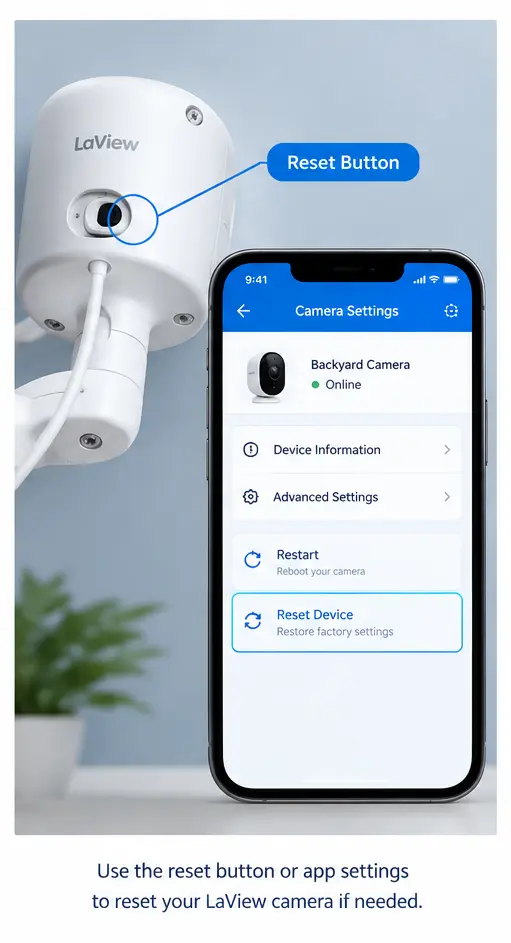
LaView camera reset button and camera settings for error 8200
Note: Also keep LaView Camera login details handy in case you need it again after reset.
LaView Error Code 8200 Still Appears?
If you’ve completed the steps above and the LaView camera error code 8200 continues, check whether the problem is limited to one camera.
If only one camera is affected
The problem may be related to that camera’s WiFi configuration, firmware or hardware. Try resetting the affected camera and setting it up again close to the router.
If multiple cameras are offline
Check the router and internet connection first. Restart the router and confirm that other devices can access the internet. If the camera works near the router but not in its normal location
This points toward a possible WiFi coverage problem.
Consider:
- Moving the router
- Moving the camera
- Reducing obstacles between the camera and router
- Improving WiFi coverage with a suitable extender or mesh system
If the camera still won’t connect after a reset
Check the camera’s model-specific support documentation or contact LaView support. Have the following information ready:
- LaView camera model
- App version
- Router model
- WiFi band being used
- Camera status
- Error message or screenshot
- Steps you’ve already tried
This can make troubleshooting much easier. If LaView camera offline issue still appears then you can check our detailed blog on it.
LaView Camera Error 8200: When to Reset vs. When to Contact Support
| Situation | Try a Reset? | Contact Support? |
| WiFi password was changed | Yes | Not usually |
| Camera was moved to a new router | Yes | Not usually |
| Camera won’t enter setup mode | Try model-specific reset | If reset doesn’t work |
| Camera works near router but not at its location | Not first | Not necessarily |
| Multiple LaView cameras are offline | Not first | Check router/network first |
| Camera still shows 8200 after reset | Already tried | Yes |
| Camera appears to have a hardware problem | No | Yes |
| App repeatedly fails to detect the camera | Try reconnecting/resetting | If the issue continues |
Frequently Asked Questions
What does LaView camera error code 8200 mean?
LaView does not currently provide a universal public definition for error 8200 across all camera models. When the code appears alongside an offline camera or failed live feed, troubleshoot the WiFi connection, app, camera status and network configuration first.
How do I fix LaView error code 8200?
Start by checking your internet connection and connecting your phone to the camera’s supported WiFi band. For many LaView WiFi cameras, this means 2.4 GHz. Then restart the router and camera, check the password and reconnect the camera through the LaView app.
Why does my LaView camera show error 8200?
The exact cause can vary by camera model. A weak WiFi signal, incorrect network details, router problems or an interrupted camera-to-app connection can prevent the camera from communicating correctly. If the camera recently changed networks, it may need to be reset and added again.
Can restarting my LaView camera fix error 8200?
Yes, restarting can help if the problem is caused by a temporary connection or network issue. Restart both the router and camera, then give the camera time to reconnect. If it remains offline, check the WiFi band and reconnect it through the LaView app.
Does resetting a LaView camera remove error 8200?
A reset can help when the error is caused by incorrect or outdated WiFi information, but it is not guaranteed to fix every instance of error 8200. After resetting, you’ll generally need to add the camera to the LaView app and configure its WiFi connection again.
Final Thoughts
LaView camera error code 8200 can be frustrating, but the first things to check are usually the network connection, WiFi band, signal strength and camera setup.
Start with the simple fixes: restart your router, connect your phone to the correct WiFi network, move the camera closer to the router and verify the password. If the camera still won’t connect, reset it and complete the LaView Camera Setup again through the app.
If you’re still having problems, related guide such as LaView camera not working, can help with the next troubleshooting steps.