
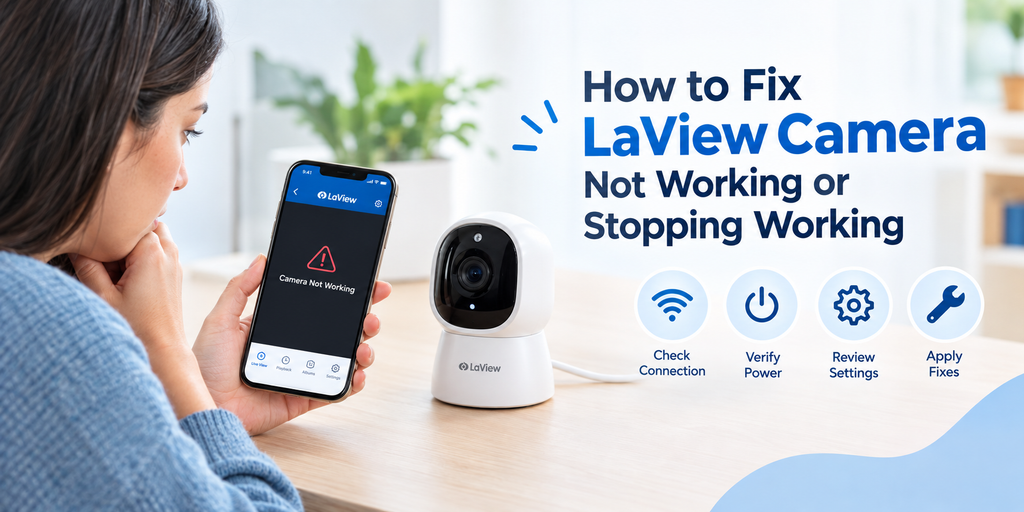
A LaView security camera can stop working for several reasons. You may see the camera as offline, lose live video, fail to connect to Wifi or find that the LaView app cannot connect to the camera.
The cause may be as simple as a temporary network problem, but it can also involve camera power, Wifi settings, app compatibility, firmware or a router change.
Quick answer: If your LaView camera is not working, first check camera power, your internet connection, Wifi frequency and the camera’s status in the LaView app. Restart the router and camera, make sure your phone is connected to the appropriate Wifi network and check for firmware or app updates. If the camera still will not connect, reset and set it up again only when necessary.
Note: This is an independent troubleshooting guide. It is not an official LaView support page and is not affiliated with LaView. Camera menus, indicator lights, apps and reset procedures can vary by model.
What Should You Check First When a LaView Camera Stops Working?
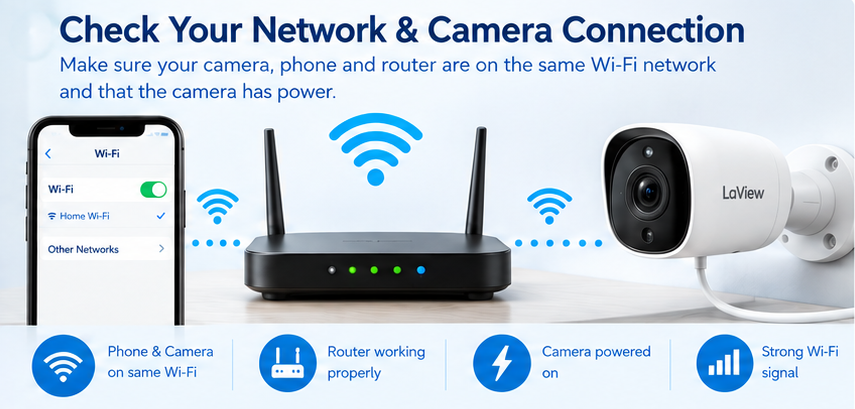
Before changing settings or resetting the camera, check the basics. A few quick checks can tell you whether the problem is with the camera, network, app or router.
1. Check whether the camera has power
Make sure the camera is receiving power and that its cable and adapter are properly connected.
If your model has a status indicator, check whether the light is on, flashing or showing an error condition. The meaning of indicator lights varies between models, so use the instructions for your specific camera.
2. Check your internet connection
Open another website or app on your phone. If your phone also has trouble accessing the internet, the LaView camera may not be the main problem.
Restart your router and wait for the network to become stable before checking the camera again.
3. Check the Wifi band
For many LaView Wifi camera models, 2.4 GHz Wifi is required during setup. LaView’s support pages for models such as the B5, B9, F1 and N20 specify using a 2.4 GHz network.
If your router broadcasts separate 2.4 GHz and 5 GHz networks, connect your phone to the 2.4 GHz network when setting up a compatible LaView camera.
Do not assume every LaView product has identical networking requirements. Always verify the requirement for your exact model.
4. Check the LaView app
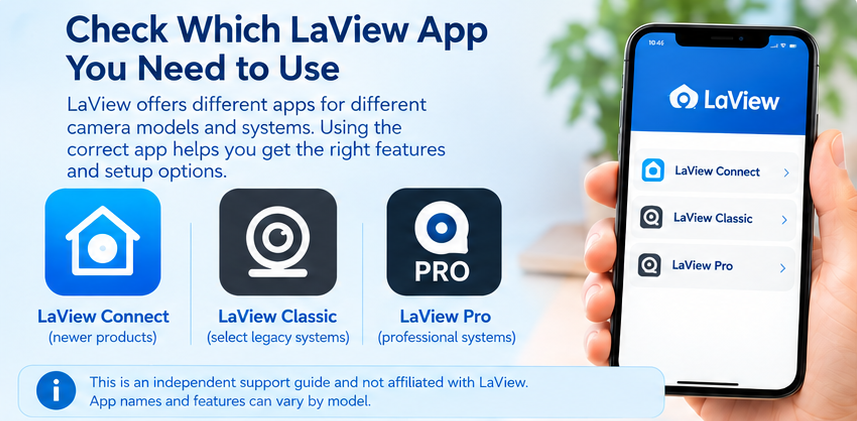
Make sure you are using the app that supports your particular camera.
Some older LaView models have specific app requirements. If the camera previously worked, check whether the app has an available update before removing or reinstalling it.
Quick troubleshooting checklist
| Check | What to do | Why it matters |
| Camera power | Confirm the camera is powered on | A powered-off camera cannot connect |
| Internet | Test another website or app | Confirms whether the network is working |
| Wifi | Check the required Wifi band | Some LaView models require 2.4 GHz |
| Router | Restart the router if needed | Can clear temporary network problems |
| App | Update the LaView app | Older versions may cause problems |
| Firmware | Check for available updates | Can resolve compatibility or stability issues |
| Camera status | Check Online/Offline in the app | Helps identify the problem area |
Why Is My LaView Security Camera Not Working?
A LaView camera can stop working even when the camera itself has not failed.
Common causes include:
- Temporary Wifi or internet problems
- Weak wireless signal
- Camera power interruption
- Incorrect Wifi password
- Phone connected to the wrong Wifi band during setup
- Router or Wifi name/password changed
- Camera firmware issue
- App compatibility or update problem
- Camera no longer registered correctly in the app
- Camera stuck in an abnormal network state
- Incorrect setup after a router replacement
If your camera suddenly stopped working after months of normal operation, focus first on what changed immediately before the problem started.
For example, if you recently changed your router, Wifi password or network name, the camera may still be configured for the old network.
Different LaView cameras may also have different setup requirements. This is why checking the exact model before performing a reset is important.
How to Fix a LaView Camera That Is Not Working
Follow these solutions in order. Start with the least disruptive fix and move toward a reset only if necessary.
1. Restart the camera
Disconnect the camera from power. Wait several seconds, then reconnect it.
Give the camera enough time to start and reconnect before opening the app again.
This simple step can clear a temporary network or startup problem.
2. Restart the router
Restart your Wifi router and wait until your phone has a stable internet connection.
Then check the LaView app.
If the camera reconnects after the router restart, the issue was likely related to a temporary network problem.
3. Move the camera closer to the router
If the camera is far away from the router, weak Wifi can cause intermittent connections or make the camera appear offline.
As a test, move the camera closer to the router.
If it works normally near the router but not at its original location, the problem is probably related to wireless signal strength rather than the camera hardware.
4. Check the Wifi password
If you are setting up the camera again, carefully enter the Wifi password.
A single incorrect character can prevent the camera from connecting.
If the Wifi password was recently changed, the camera may need to be configured for the new network.
5. Check the phone’s Wifi connection
During setup, connect your phone to the appropriate Wifi network.
For supported LaView Wifi cameras that require 2.4 GHz, your phone should be connected to the 2.4 GHz network while completing setup.
6. Update the camera firmware
If the camera connects but repeatedly goes offline, check whether a firmware update is available for your model.
Firmware can affect device stability and compatibility.
If you need a complete walkthrough, see our LaView camera firmware update guide.
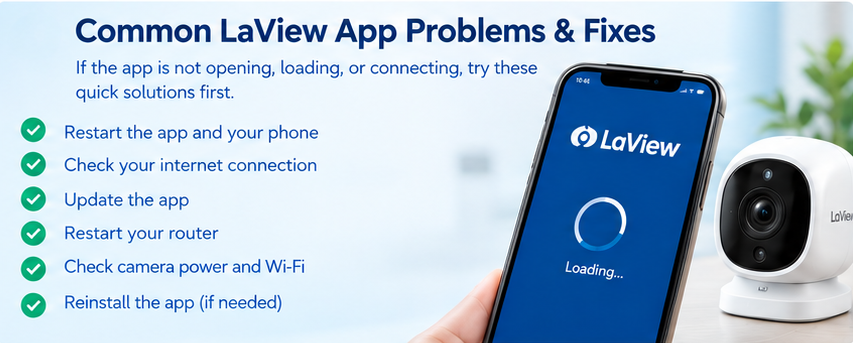
7. Update or reinstall the app
If the camera works for other users or devices but your phone cannot access it, the issue may be application-related.
Try:
- Force close the LaView app.
- Reopen it.
- Check for an app update.
- Restart your phone.
- Sign in again if necessary.
- Reinstall the app only if the problem continues.
Before reinstalling, make sure you know your account credentials.
8. Check the camera in the app
Open the camera’s device page and check whether it shows:
- Online
- Offline
- Connecting
- No live video
- Network error
- Another model-specific status
The exact wording can vary between LaView products. If only one camera is offline while your other cameras work, troubleshoot that individual camera first.
What If My LaView Camera Is Offline but Wifi Is Working?
This is one of the most confusing situations. Your phone may have a perfectly good internet connection while the camera remains offline. The camera has its own connection to the router, so your phone being online does not automatically mean the camera is connected.
Try this sequence:
- Confirm the camera has power.
- Restart the camera.
- Restart the router.
- Check the camera’s Wifi range.
- Check whether the camera is connected to the correct network.
- Check for firmware updates.
- Open the LaView app again.
- Reconnect the camera if it still remains offline.
If the camera remains offline after these steps, a reset may be necessary. However, do not reset the camera immediately. Resetting can remove its existing configuration and require you to complete the setup process again.
For a more focused solution, see our LaView camera offline troubleshooting guide.
What If My LaView Camera Has Power but Shows No Live Video?
A powered camera is not necessarily an online camera. If the camera turns on but the LaView app does not show live video, first determine whether the problem affects one camera or all cameras.
If only one camera has no live video
Check:
- Camera Wifi connection
- Camera status in the app
- Camera signal strength
- Firmware
- Power connection
- Whether the camera recently changed location
If every camera has no live video
Focus on the network and app first. Check your phone’s internet connection, restart the router, close and reopen the app and sign in again.
You should also check whether the app is displaying an error message.
If live video loads but is slow or freezes
A weak or unstable connection can affect live video. Move the camera closer to the router as a test.
If live video improves significantly, investigate Wifi coverage at the camera’s normal location.
What If My LaView Camera Stopped Working After a Wifi or Router Change?
A router replacement or Wifi change is a common reason for a previously working camera to go offline.
Your camera may still be configured with:
- The old Wifi name
- The old Wifi password
- An unsupported Wifi band
- A network configuration that no longer exists
In this situation, simply restarting the camera may not be enough.
Try these steps first
Connect your phone to the new Wifi network. Confirm that the network meets your camera’s requirements.
- Restart the router.
- Restart the camera.
- Open the LaView app.
- Check whether the camera reconnects automatically.
If it does not, you may need to put the camera back into setup mode and add it to the new network. For supported LaView models, the setup process can involve resetting the camera, adding it through the LaView app, entering the 2.4 GHz Wifi password and allowing the camera to scan a QR code displayed on the phone. Exact steps vary by model.
If you need a complete walkthrough, see our LaView camera setup instructions.
Common problem and solution guide
| Problem | Most likely cause | What to try first |
| LaView camera not working | Power, Wifi, app or firmware issue | Restart camera and router |
| Camera stops working suddenly | Network or power interruption | Check power and internet |
| LaView camera offline | Camera lost network connection | Restart camera/router |
| Camera not connecting to Wifi | Wrong password or Wifi band | Check 2.4 GHz requirement |
| Camera not showing live view | Network/app/device issue | Check camera status and internet |
| App cannot find camera | Wrong app, account or setup | Verify model and account |
| Camera disconnects repeatedly | Weak Wifi or firmware | Check signal and updates |
| Problem after router change | Old network credentials | Reconnect camera |
| App keeps loading | App or internet problem | Restart app and test network |
When Should You Reset a LaView Security Camera?
A factory reset should be a later troubleshooting step, not the first thing you try. Consider resetting the camera when:
- It repeatedly fails to connect.
- The Wifi network has changed.
- Normal reconnection steps do not work.
- The camera is stuck in setup mode.
- You need to configure it on a different network.
- The app cannot recover the existing connection.
Before resetting, make sure you know the Wifi password and have the information required to add the camera again.
Reset procedure
The exact reset method varies by LaView model. For example, some LaView models use a physical reset button that must be held for several seconds until the camera indicates that the reset has completed. Do not apply one model’s reset procedure to another model unless the model-specific instructions confirm it.
After resetting, follow the appropriate setup process.
How to Prevent LaView Camera Problems in the Future
Once your camera is working again, a few simple habits can reduce future connection problems.
Keep the camera within reliable Wifi range
Avoid placing a Wifi camera where the signal is consistently weak.
Keep the app updated
App updates can include compatibility and stability improvements.
Check firmware periodically
If your model provides firmware updates, keeping the camera current can help prevent recurring software-related problems.
Avoid unnecessary router changes
If you change your Wifi name or password, remember that connected smart devices may need to be configured again.
Keep your setup information
Store your Wifi credentials and camera model information somewhere secure. This can make future troubleshooting much easier.
Know your camera model
Different LaView cameras can use different setup procedures. If you own a B5, see our LaView B5 camera setup guide.
When Should You Contact LaView Support?
If the camera still does not work after basic troubleshooting and a model-specific reset, the problem may require manufacturer-level assistance.
Consider contacting official LaView support when:
- The camera will not power on.
- The camera repeatedly disconnects after setup.
- Firmware cannot be updated.
- The camera cannot complete pairing.
- The camera shows a recurring hardware or network error.
- You cannot access the required account.
- The camera still does not connect after a factory reset.
- Multiple cameras are experiencing the same issue.
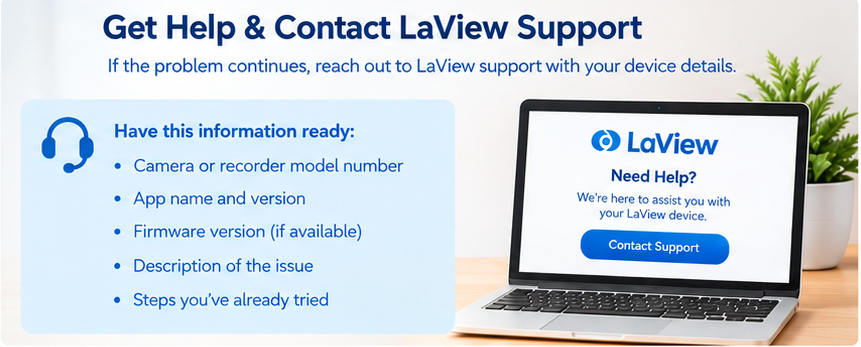
Before contacting support, collect:
- Camera model number
- App name and version
- Camera firmware version
- Router model
- Exact error message or code
- Description of when the problem started
- Steps you already tried
If your problem is specifically related to LaView error 8200, use our dedicated LaView error code 8200 troubleshooting guide rather than repeating the general steps in this article.
When to seek additional help
| Situation | Recommended action |
| Camera will not power on | Check adapter/cable, then contact support if unresolved |
| Camera repeatedly disconnects | Check Wifi strength and firmware |
| Camera cannot complete setup | Verify model, app, Wifi and reset procedure |
| Firmware update fails | Record the error and contact support |
| Camera remains offline after reset | Check model-specific troubleshooting |
| Hardware appears damaged | Contact official support or service |
| Error code appears repeatedly | Search the exact error code or contact support |
Frequently Asked Questions
Why is my LaView camera not working?
A LaView camera may stop working because of a Wifi problem, weak signal, power interruption, outdated firmware, app issue or changed network credentials. Start by checking power and internet access, restarting the camera and router and confirming that your camera is connected to the correct Wifi network.
Why did my LaView security camera suddenly stop working?
If the camera worked previously and suddenly stopped, check whether your router, Wifi password, internet connection or camera power changed. Restart the router and camera first. If other devices are online but the camera remains offline, check its Wifi connection, firmware and app status.
How do I get my LaView camera back online?
Restart the camera and router, verify that your network is working and check the camera’s Wifi connection in the LaView app. If the camera still remains offline, check firmware and signal strength. If the network was recently changed, you may need to reconnect or reset the camera and complete setup again.
Why is my LaView camera offline when my Wifi works?
Your phone having internet access does not guarantee that the camera is connected to the router. The camera may have weak Wifi, lost its network credentials or experienced a connection problem. Restart the camera and router, move the camera closer to the router and check its status in the app.
Why is my LaView camera not showing live video?
Check whether the camera is online first. If it is offline, troubleshoot the network connection. If it is online but live video does not load, restart the app, check your phone’s internet connection, restart the camera and look for firmware or app updates. A weak connection can also affect live-view performance.
What should I do if my LaView camera stops connecting to Wifi?
First confirm that your camera supports the Wifi network you are trying to use. Many LaView Wifi models specify 2.4 GHz Wifi for setup. Connect your phone to the appropriate network, move the camera closer to the router, restart the router and try the setup process again.
Do I need to reset my LaView camera if it stops working?
Not necessarily. Try restarting the camera and router, checking Wifi, updating the app and firmware and reconnecting the camera first. A reset is more appropriate when the camera cannot reconnect normally or when the Wifi network has changed. Remember that a factory reset can remove the camera’s existing configuration.
Conclusion
When a LaView camera is not working or suddenly stops working, the problem is usually worth troubleshooting before assuming the camera has failed. Start with the basics: check power, internet access, Wifi signal, the correct app and the camera’s status. Restart the router and camera, then check firmware and app updates.
If the camera went offline after changing your router or Wifi password, you may need to reconnect it to the new network. For supported models, this can require putting the camera into setup mode and adding it again through the LaView app.
Most importantly, do not factory-reset the camera as your first step. A systematic troubleshooting process can often restore the connection without forcing you to configure the entire camera again.
If the problem continues after these steps, use the camera’s exact model and error message to find a model-specific solution or contact official LaView support.